Overview
This journey covers what you see and do the first time you log in to Artie AI. It walks you through entering your credentials, understanding the dashboard widgets, and learning how the sidebar navigation adapts to your role. Follow this guide before attempting any other workflow.
Prerequisites
- Role required: Any role (Admin, Manager, Receptionist, Stylist, or Client)
- Before you start: Have your username (or email address) and password ready. If you have not received credentials, contact your salon administrator.
Open the Login Page
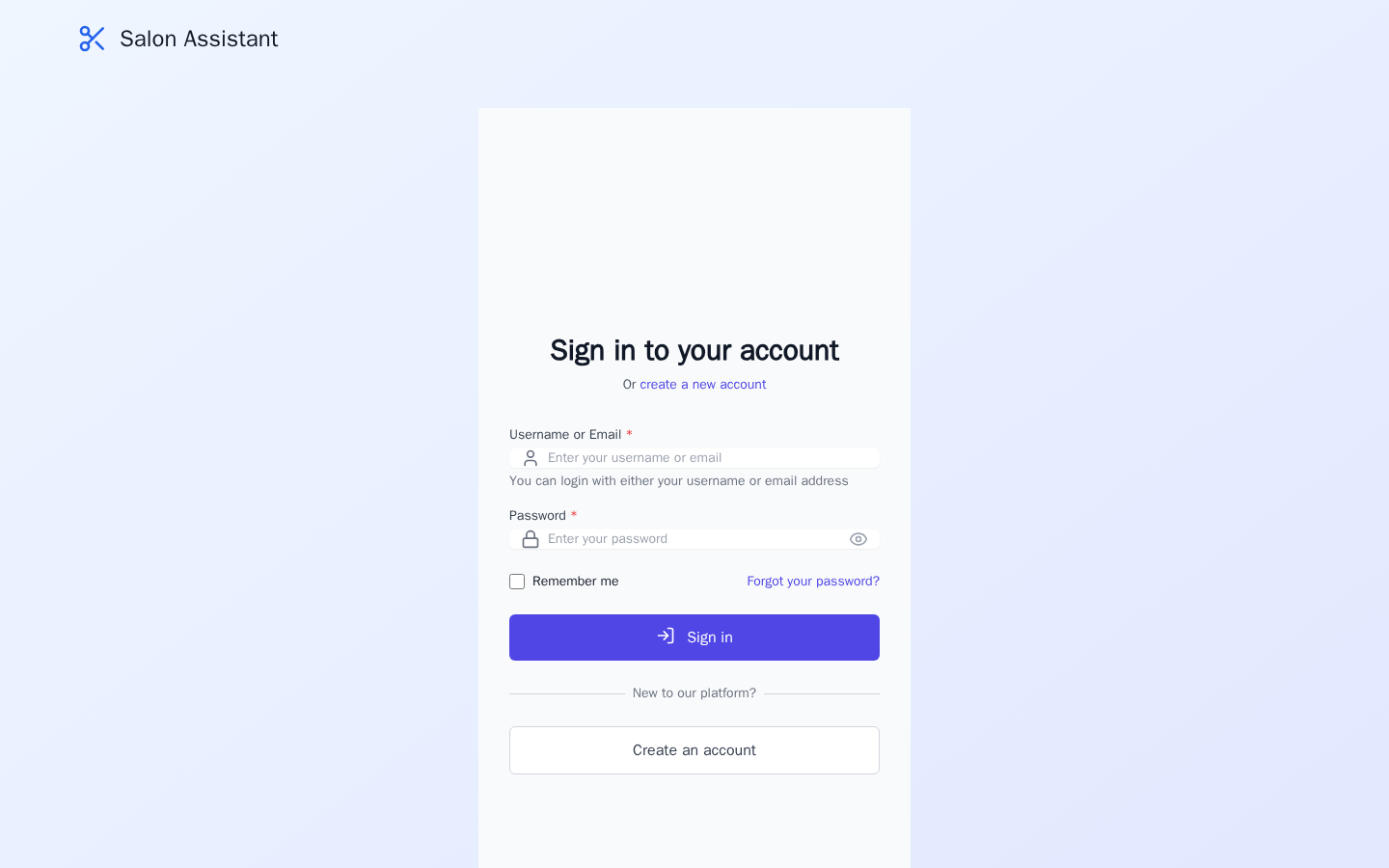
Navigate to the root URL of your Artie AI installation. The platform redirects you to the login page automatically if you are not already signed in.
What you'll see: A centered card with the heading "Sign in to your account", two input fields, a "Remember me" checkbox, and a blue "Sign in" button. Below the form there is a "Create an account" link for new users who need to register.
Enter Your Credentials
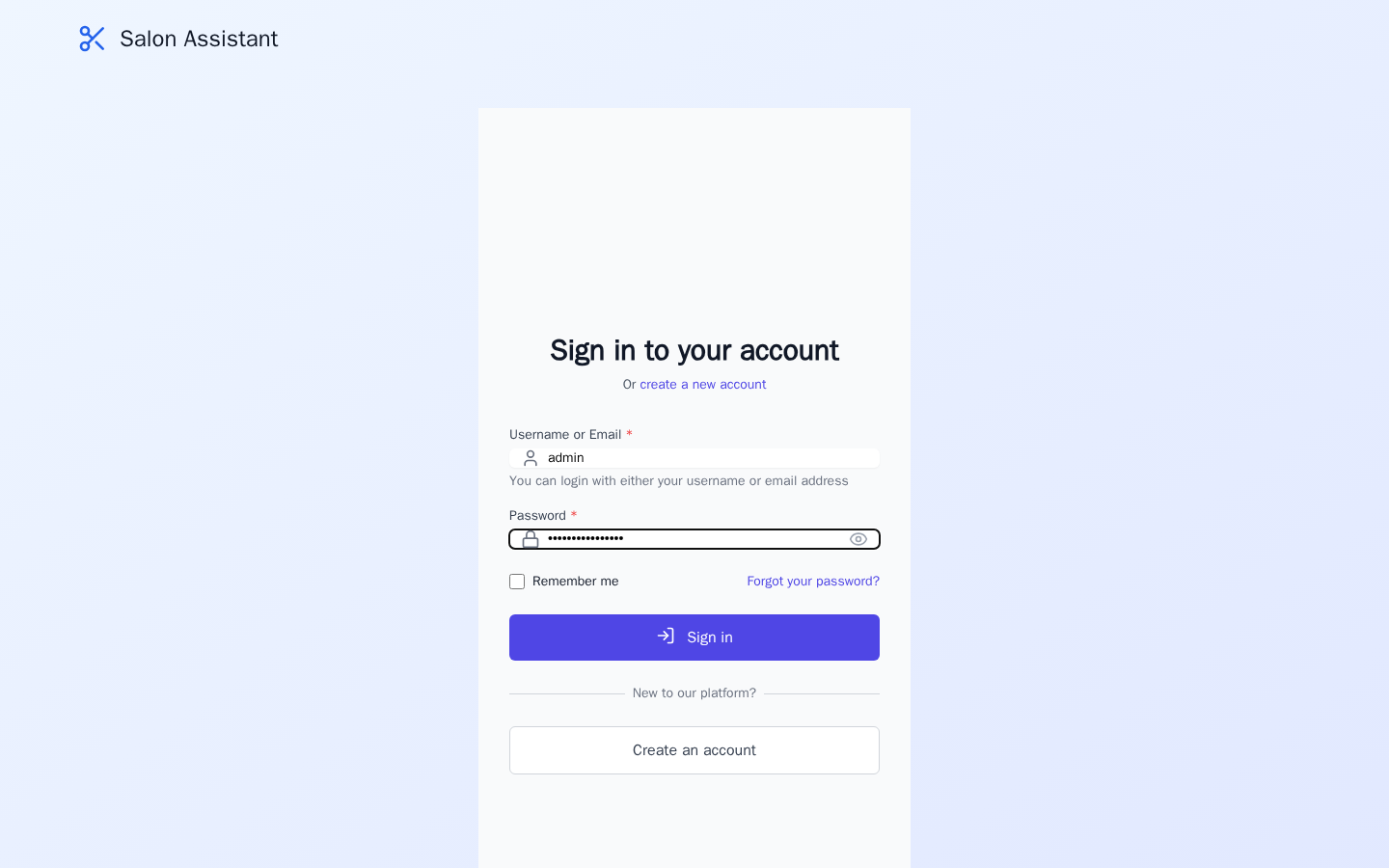
In the Username or Email field, type your username or email address. The field accepts either format.
In the Password field, type your password. Click the eye icon on the right edge of the field to toggle password visibility.
Optionally check Remember me to stay signed in across browser sessions.
What you'll see: A lock icon appears to the left of the password field. Validation runs when you leave each field (on blur); a red error message appears below a field if the value is missing or too short.
Submit the Form
Click the blue Sign in button. The button shows "Signing in..." with a loading indicator while the request is processed.
What you'll see: On success, the platform redirects you to /dashboard. On failure, a notification banner appears at the top of the screen with the message "Login Failed" and the specific error reason (for example, "Invalid credentials").
Orient Yourself to the Dashboard
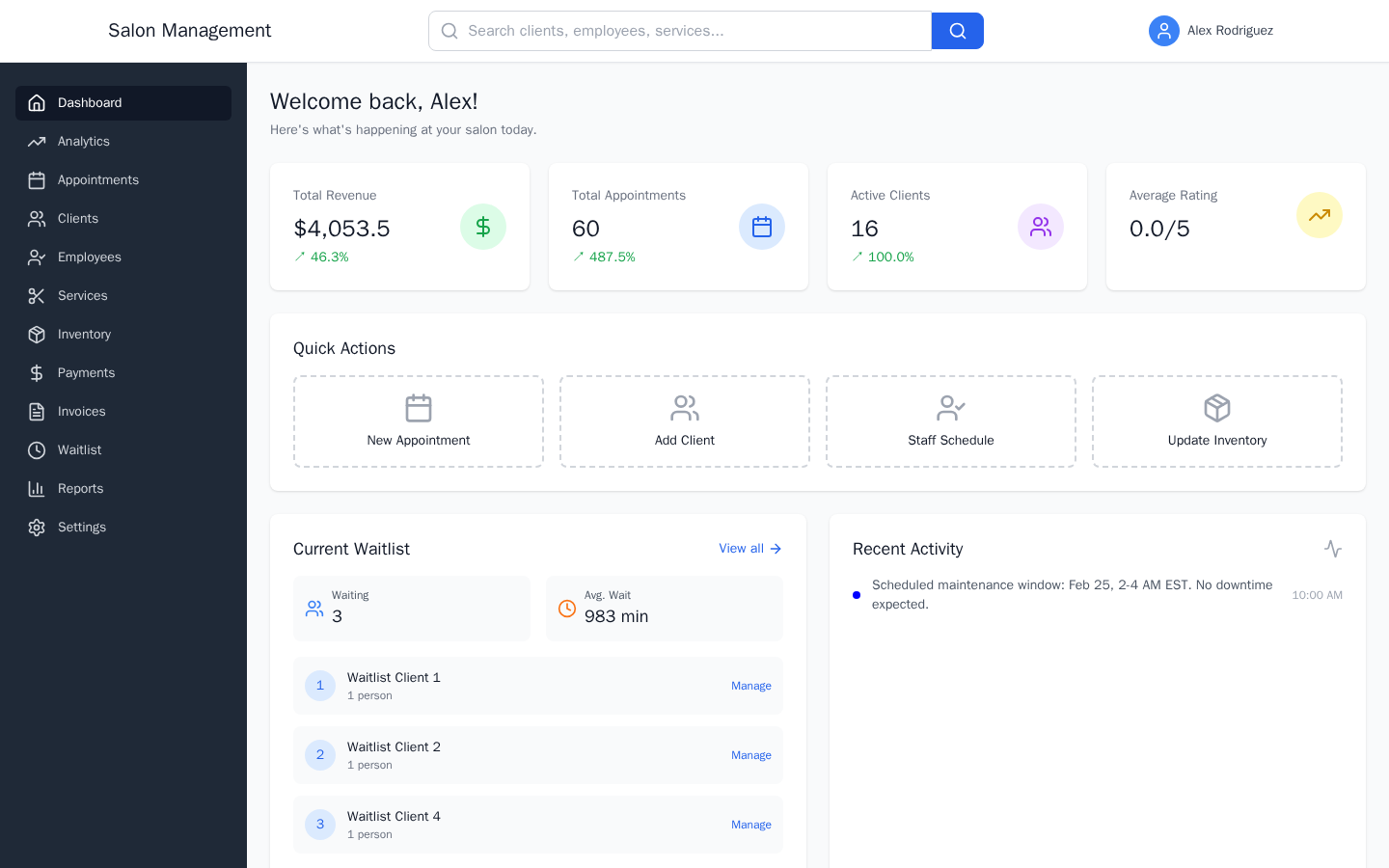
The dashboard is at /dashboard. It is divided into summary widgets and a quick-actions area.
| Widget | What it shows |
|---|---|
| Today's Appointments | Count and list of appointments scheduled for today |
| Revenue Summary | Totals for today, this week, and this month |
| Client Activity | Recent client visits and new registrations |
| Staff Performance | Employee productivity metrics |
| Quick Actions | Shortcut buttons to common tasks |
What you'll see: Each widget is a card with a heading and data. Cards that are still loading show a spinner. If data is unavailable a placeholder message is displayed.
Learn the Sidebar Navigation
The dark sidebar on the left lists all sections you have permission to access. Items visible to you depend on your role:
| Sidebar Item | Permission Required | Typical Roles |
|---|---|---|
| Dashboard | (always visible) | All |
| Analytics | report:view | Admin, Manager |
| Appointments | appointment:read | Admin, Manager, Receptionist, Stylist |
| Clients | client:read | Admin, Manager, Receptionist |
| Employees | employee:read | Admin, Manager |
| Services | service:read | Admin, Manager |
| Inventory | inventory:read | Admin, Manager |
| Payments | read:payments | Admin, Manager |
| Invoices | read:invoices | Admin, Manager |
| Waitlist | appointment:read | Admin, Manager, Receptionist, Stylist |
| Reports | report:view | Admin, Manager |
| Settings | settings:manage | Admin |
Click any visible item to navigate to that section. The active item is highlighted with a white background on the dark sidebar.
What you'll see: If a section is not in your sidebar, your role does not grant access. Contact your administrator to request additional permissions.
Tips & Best Practices
- Use your email address instead of your username if you forget which username was assigned to you.
- Bookmark
/dashboardfor quick daily access after the first login. - If a dashboard widget shows stale data, refresh the page; data is fetched fresh on each load.
- Administrators can see all sidebar items; use the Settings page to configure salon-wide preferences before onboarding other staff.
Common Issues
| Issue | Solution |
|---|---|
| "Login Failed: Invalid credentials" | Double-check your username/email and password. Passwords are case-sensitive. |
| Password field rejects input | Make sure your password meets the requirements: 8+ characters, at least one uppercase letter, one lowercase letter, one number, and one special character. |
| Redirected back to login after clicking a link | Your session has expired. Log in again; check "Remember me" to extend the session. |
| Sidebar item is missing | Your role does not include the required permission. Contact your salon administrator. |
| Dashboard widgets are empty | Your salon may not have data yet. Proceed to set up clients, services, and employees. |
Related Journeys
- Booking an Appointment — Schedule a client appointment after you are oriented to the platform
- Registering a New Client — Add clients to the system before booking their first appointment