Overview
After an appointment is booked, circumstances often change. This journey explains how to reschedule an appointment to a new date or time using the RescheduleConfirmDialog, how to cancel an appointment with a reason, and how drag-and-drop works in calendar views. It also covers cancellation fees and bulk operations for managing multiple appointments at once.
Prerequisites
- Role required: Admin, Manager, or Receptionist for most actions. Stylists may view their own appointments but cannot cancel or reschedule by default.
- Before you start: The appointment must already exist and must not be in a terminal status (Completed, Cancelled, or No Show — these cannot be modified).
Find the Appointment
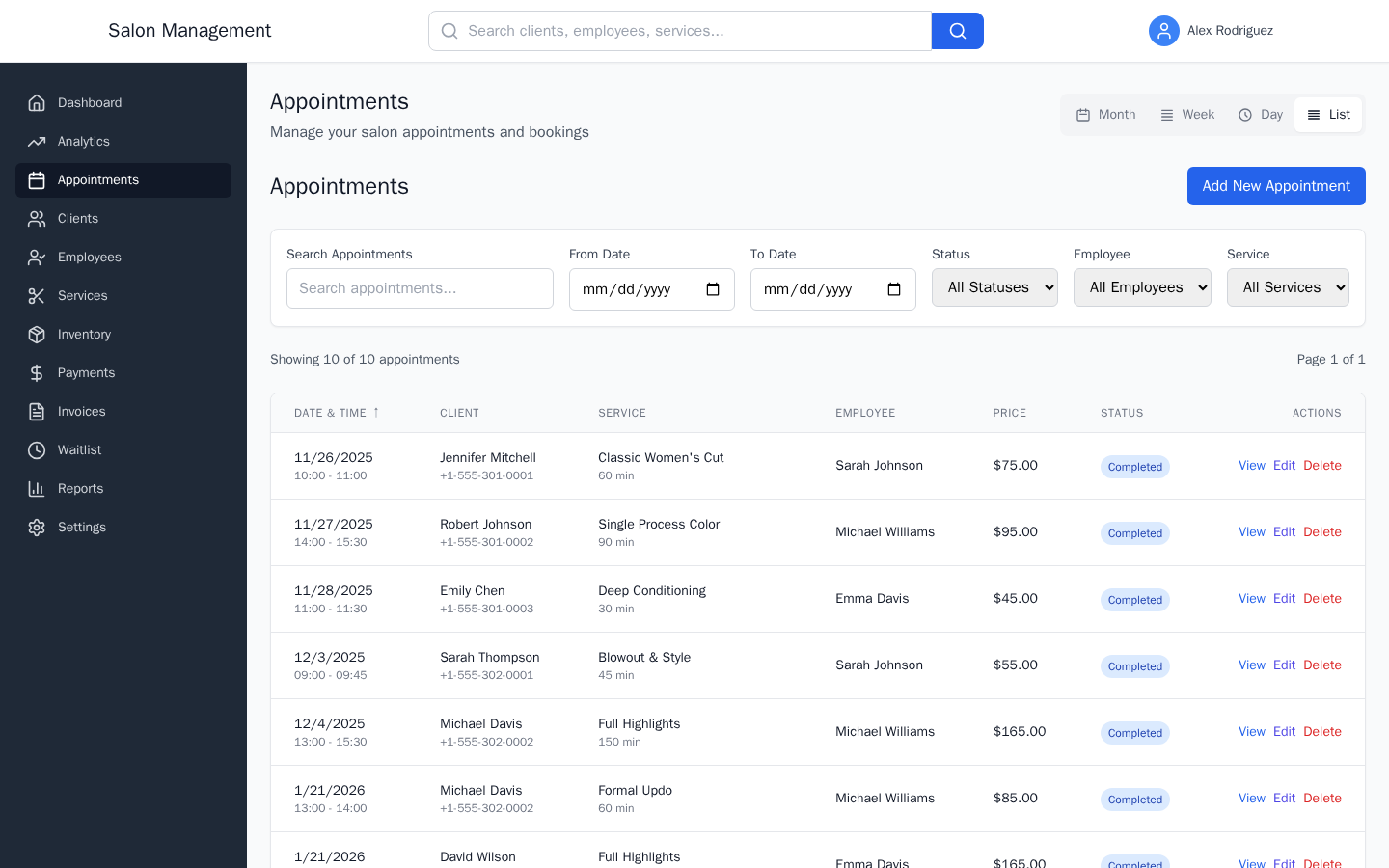
Navigate to /appointments using the sidebar. Use the search box or filters to locate the appointment:
| Filter | Purpose |
|---|---|
| From Date / To Date | Filter by date range |
| Status | Filter by Pending, Confirmed, Completed, Cancelled, or No Show |
| Employee | Filter by staff member |
| Service | Filter by service type |
In calendar views (Month, Week, or Day), find the appointment block on the calendar grid. Click any appointment block or row to open its detail page.
What you'll see: In list view, each row shows Date & Time, Client, Service, Employee, Price, and a color-coded Status badge. Click the View action on any row to open the detail page at /appointments/:id.

Open the Appointment Detail Page
Click on the appointment (in list view, click View; in calendar view, click the appointment block). This takes you to /appointments/:id.
What you'll see: A header card showing the client's name, service, status badge, appointment ID, total price, and duration. Below the header are four tabs: Overview, Services, Notes, and History. Action buttons appear in the top-right corner of the header and are context-sensitive based on the current status.
Reschedule the Appointment
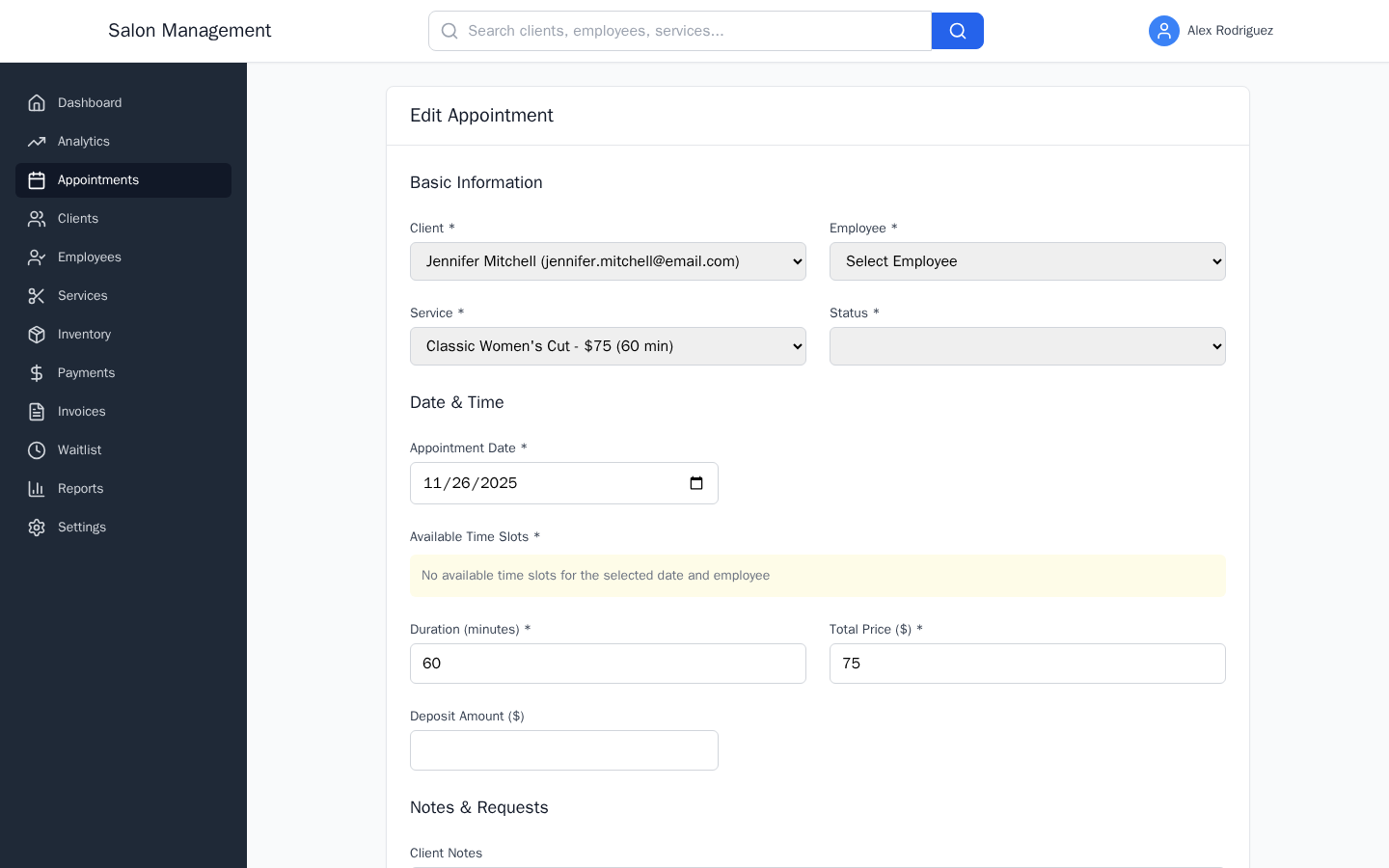
To reschedule, click the Edit button in the top-right of the header. This takes you to /appointments/edit/:id, the same form used for booking but pre-filled with the current appointment values.
In the form:
- Change the Appointment Date to the new date.
- Wait for the Available Time Slots panel to refresh with open slots for that date.
- Click the new time slot.
- Optionally update Duration (minutes), Total Price ($), or Internal Notes to reflect any changes.
- Click Update Appointment to save.
What you'll see: The RescheduleConfirmDialog is presented as part of this flow when a confirmed appointment is being moved. You will be prompted to enter a reason for the change before saving. Once confirmed, the appointment detail page updates to show the new date and time, and the change is recorded in the History tab.
After saving, the client receives an automatic notification of the rescheduled time.
Cancel the Appointment
From the appointment detail page at /appointments/:id, click the Cancel button. A browser prompt appears asking:
What you'll see: On success, the status badge changes to a red "Cancelled" badge. The Cancel button disappears because the appointment is now in a terminal state. The cancellation timestamp appears in the Status Timeline on the Overview tab. The client is notified automatically.
Drag-and-Drop Rescheduling (Calendar Views)
In the Week or Day calendar views, you can reschedule by dragging an appointment block to a new time slot.
- Switch to Week or Day view using the view toggle in the top-right of the Appointments page.
- Click and hold an appointment block.
- Drag it to the new time position.
- Release to drop.
What you'll see: A confirmation dialog appears before the change is committed, matching the same confirmation flow as the form-based reschedule. If the drop target is unavailable, the appointment snaps back to its original position.
Cancellation Fees
Artie AI enforces per-salon cancellation policies. When you cancel an appointment, the system calculates any applicable fee automatically using calculateCancellationFee.
What you'll see: If a cancellation fee applies, a fee summary is shown before you confirm. Staff with appropriate permissions can click Waive Fee to remove the charge using waiveCancellationFee. Waiving requires a reason.
Bulk Operations (Admin, Manager, Receptionist)
To cancel or reschedule multiple appointments at once:
- Go to
/appointmentsin list view. - Select the checkboxes next to the appointments you want to modify.
- Use the bulk action toolbar that appears when one or more rows are selected.
- Choose Cancel Selected or Reschedule Selected.
What you'll see: A confirmation dialog lists the number of appointments affected. Confirm to apply the action to all selected appointments. Each affected client is notified individually.
Tips & Best Practices
- Always provide a cancellation reason when cancelling on behalf of a client — it is logged in the History tab for audit purposes.
- Use the History tab on the detail page to see a full audit trail of all changes, including who made each change and when.
- Prefer drag-and-drop in Day view for precision rescheduling within a single day. Month view is better for moving appointments across weeks.
- If a fee waiver is needed, process it before confirming the cancellation, as the fee cannot be retroactively waived once the status is recorded.
- For recurring appointments, cancelling or rescheduling one occurrence does not automatically affect future occurrences. Handle each one individually or use bulk operations.
Common Issues
| Issue | Solution |
|---|---|
| "Cancel" button is not visible | The appointment is already Completed, Cancelled, or No Show. These terminal states cannot be changed. |
| "Edit" takes me to the form but the date is in the past | The form prevents selecting past dates for new bookings but allows editing existing records. The validation warning appears only if you change the date to a past date. |
| Drag-and-drop does not work | Ensure you are in Week or Day view. List and Month views do not support drag-and-drop rescheduling. |
| Cancellation fee appears unexpectedly | Your salon's cancellation policy is active. Review the policy in Settings or contact your manager to waive the fee. |
| Client was not notified after reschedule | Check the notification scheduler status. If the scheduler is not running, notifications queue but may not send immediately. Contact your administrator. |
Related Journeys
- Booking an Appointment — Create a new appointment
- First Login & Setup — Get oriented before managing appointments