Overview
The Waitlist page gives front-desk staff a real-time view of everyone waiting in the salon, whether they walked in off the street or submitted an appointment request through the system. The page refreshes automatically every 30 seconds so you always see an up-to-date queue without having to manually reload. Use it to notify clients when a stylist is ready, seat walk-ins, or convert appointment requests into confirmed bookings.
Prerequisites
- Role required: Admin, Manager, or Receptionist (clients can add themselves and cancel their own entries)
- Before you start: Employees and services must already be set up in the system so you can assign them when seating or booking.
Open the Waitlist Page
Navigate to /waitlist from the main menu.
What you'll see: A page titled "Waitlist" with a subtitle "Manage walk-ins and appointment waitlist." At the top right are two buttons: "Refresh" (with a circular arrow icon) and "Add to Waitlist" (with a plus icon). Below the header, four summary cards show the current queue state.

Read the Summary Cards
The four metric cards at the top give you an instant overview:
| Card | What it shows |
|---|---|
| Total Active | Total number of entries currently waiting or pending |
| Walk-Ins Waiting | Walk-in entries with status "Waiting" |
| Appts Pending | Appointment requests not yet offered a slot |
| Avg Wait Time | Average wait time in minutes across active walk-ins |
These cards also refresh every 30 seconds.
Filter by Entry Type
Below the summary cards are three tab-style buttons: All Types, Walk-Ins, and Appointments. Click one to narrow the list to just that category.
What you'll see: The selected tab highlights in blue; others appear as white outlined buttons.
Filter by Status
A row of status filter buttons sits below the entry type tabs:
| Status | Description |
|---|---|
| All | Shows every entry |
| Waiting | Walk-ins waiting for a stylist |
| Pending | Appointment requests awaiting an offer |
| Offered | Appointment requests that have been offered a time slot |
| Seated | Walk-ins who have been assigned to a stylist |
| Booked | Appointment requests that have been confirmed |
| Cancelled | Entries that were cancelled |
| No Show | Clients who did not arrive |
Each button shows the count of entries in that status in parentheses.
Read Entry Cards
Each entry in the list appears as a card with:
- Customer name (large, bold) with a position number badge (#1, #2, etc.) for walk-ins
- An entry type badge ("Walk-In" in teal or "Appointment" in indigo)
- A status badge in the top-right corner (color-coded)
- For walk-ins: phone number, email, and party size
- For appointment requests: requested service name and preferred date/time
- Time since the entry was added ("Added 5 minutes ago")
- Estimated wait time for walk-ins still in "Waiting" status
- Preferred stylist name if one was specified
- Notes if any were entered
Act on a Walk-In Entry
Walk-in entries in "Waiting" status show the following action buttons:
| Action | What it does |
|---|---|
| Notify | Sends a notification to the client that a stylist will be ready soon; use this before seating. |
| Seat | Marks the client as seated and moves the status to "Seated"; use when you are handing them off to a stylist. |
| Convert to Appt | Converts the walk-in into a full appointment in the appointments system. |
| Cancel | Removes the entry from the active queue (status becomes "Cancelled"). |
| No Show | Marks the client as a no-show (status becomes "NO SHOW"). |
Act on an Appointment Request
Appointment requests go through a two-step workflow:
When status is "Pending":
- Offer — marks the entry as "Offered" and starts an offer expiry timer; use when you have a slot available to propose to the client.
- Cancel — cancels the request.
When status is "Offered":
- Book — confirms the appointment and moves the entry to "Booked"; use after the client accepts the offered slot.
- Cancel — cancels the offer.
Add a New Entry to the Waitlist
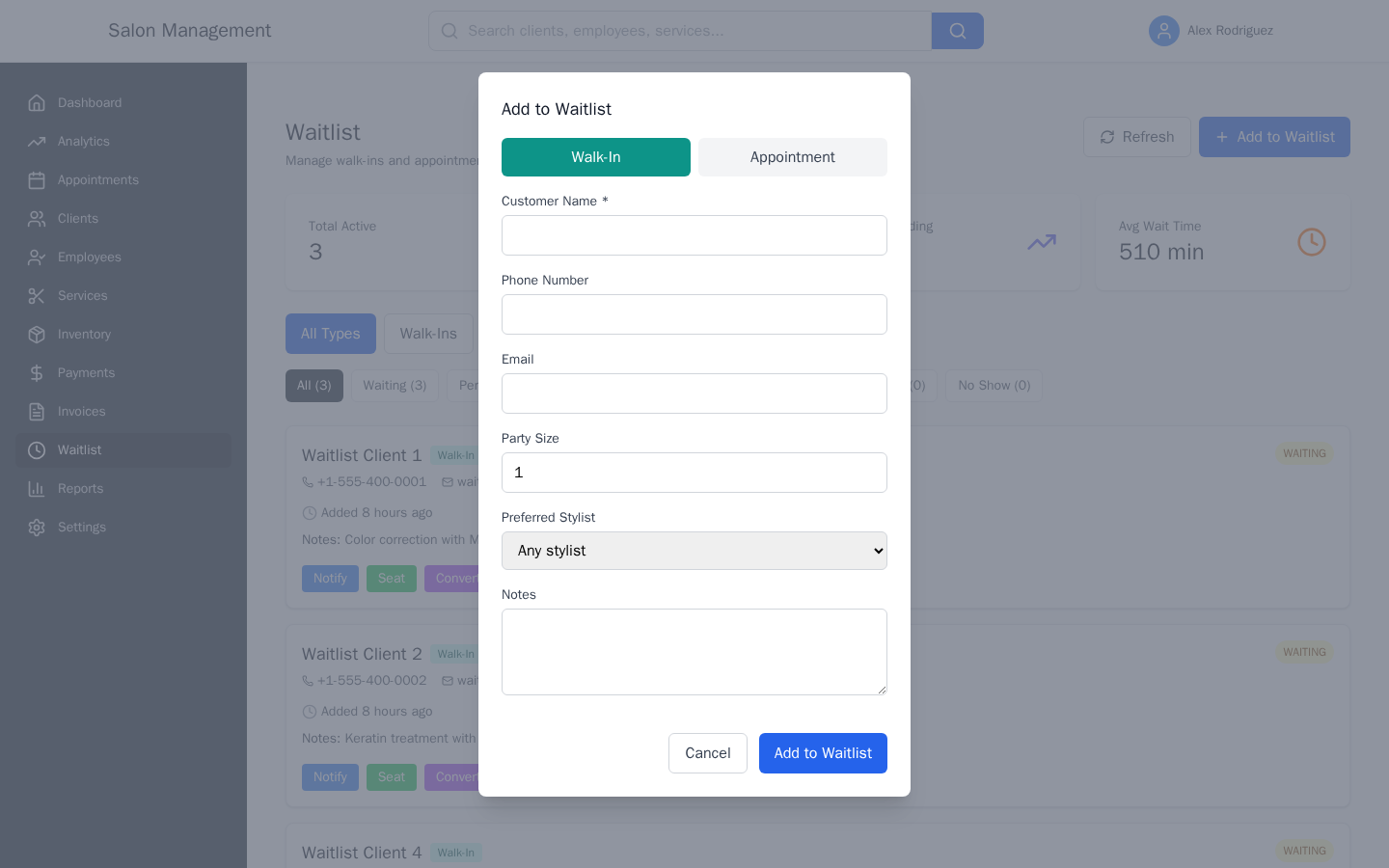
Click Add to Waitlist to open the "Add to Waitlist" modal. First choose the entry type:
Walk-In tab (teal):
| Field | Required | Notes |
|---|---|---|
| Customer Name | Yes | Free text |
| Phone Number | No | Used for SMS notifications |
| No | Used for email notifications | |
| Party Size | No | Defaults to 1 |
| Preferred Stylist | No | Drop-down of all employees; "Any stylist" if left blank |
| Notes | No | Free text |
Appointment tab (indigo):
| Field | Required | Notes |
|---|---|---|
| Client ID | Yes | Numeric ID of an existing client record |
| Service | Yes | Drop-down of all available services |
| Preferred Date/Time | No | Date-time picker for the client's preferred slot |
| Preferred Stylist | No | Drop-down of all employees |
| Notes | No | Free text |
Click Add to Waitlist to save, or Cancel to close without saving.
Manual Refresh
If you want to force an immediate data reload without waiting for the 30-second auto-refresh, click the Refresh button in the page header.
Tips & Best Practices
- Use the "Notify" button before "Seat" so clients have a moment to gather their things before being taken to a station.
- Set a preferred stylist when adding an entry — it helps with scheduling even if no specific stylist is guaranteed.
- Filter by "Pending" to quickly see appointment requests that need a slot offered to them.
- The position badge (#1, #2, etc.) on walk-in cards reflects queue order; use it to call customers fairly.
- For appointment requests, move quickly from "Offered" to "Book" — offered slots have an expiry time shown on the card.
Common Issues
| Issue | Solution |
|---|---|
| Entry type tabs show no results | The status filter may also be active — reset both to "All Types" and "All". |
| "Convert to Appt" does not appear | That button only shows for walk-in entries in "Waiting" status. |
| "Book" button is missing | The entry must be in "Offered" status first; click "Offer" to advance it. |
| Client not found when entering Client ID | Verify the client exists in the Clients section before adding an appointment-type entry. |
| Summary cards do not match the list count | Click "Refresh" — the cards and list may have loaded at slightly different poll intervals. |
Related Journeys
- Booking an Appointment — Book a full appointment directly rather than via the waitlist
- Processing a Payment — Process payment after a walk-in client is seated and service is complete