Overview
Organizations with multiple salon locations need a way to filter data by location or view combined metrics across all sites. The Salon Switcher is a dropdown control in the application header that allows organization-scope and system-scope users to select a specific salon or switch to an aggregate "All Locations" view. Salon-scope users (those assigned to a single location) never see this control because their data is automatically scoped to their assigned salon.
Applies to: Organization Owner Organization Admin System Admin
Prerequisites
- Role required: Organization Owner, Organization Admin, or System Admin (users with organization-scope or system-scope access)
- Before you start: You must have multi-location access configured. Your account must be associated with an organization that has more than one salon, or you must have system-level access.
Locate the Salon Switcher
After logging in, look at the header area of the application. If your account has organization-scope or system-scope access, you will see the Salon Switcher in the navigation header.
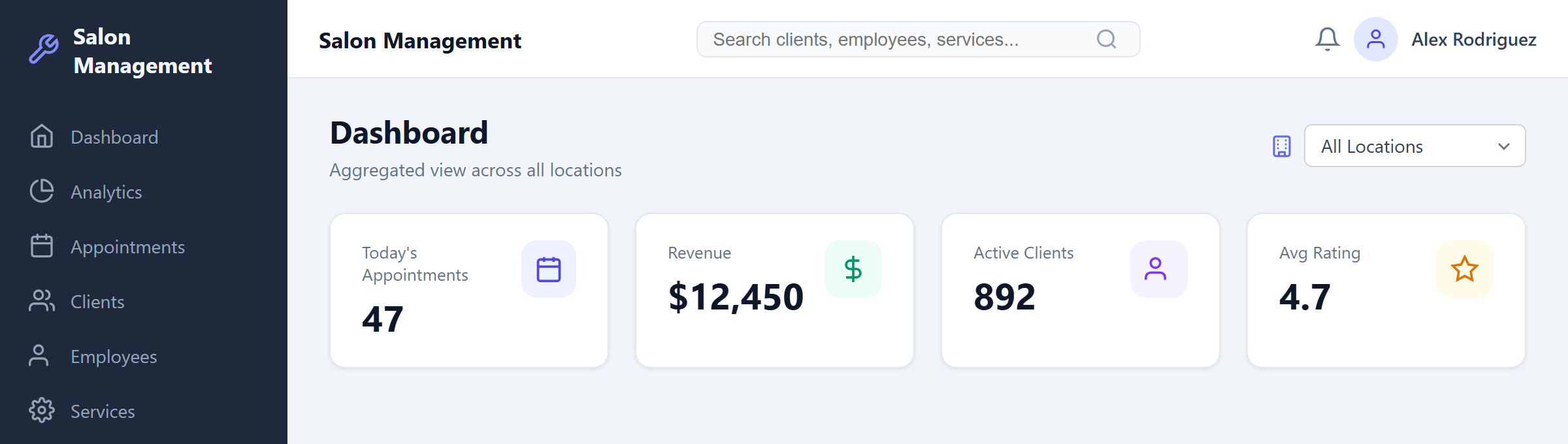
What you'll see: A small building icon followed by a dropdown select element. The dropdown displays either "All Locations" or the name of the currently selected salon. The control has a light border and sits alongside other header elements.

View "All Locations" Mode
When no specific salon is selected, the dropdown displays "All Locations". This is the aggregate mode.
What you'll see: The dropdown shows "All Locations" as the selected value. In this mode, all pages throughout the application display combined data from every salon location you have access to. Dashboard widgets show aggregate totals, appointment lists include entries from all locations, and reports cover all sites.
Select a Specific Salon
Click the dropdown to expand it and see the full list of available salon locations.
What you'll see: The dropdown opens to reveal "All Locations" at the top, followed by each individual salon name listed below it. Click on a salon name to select it.
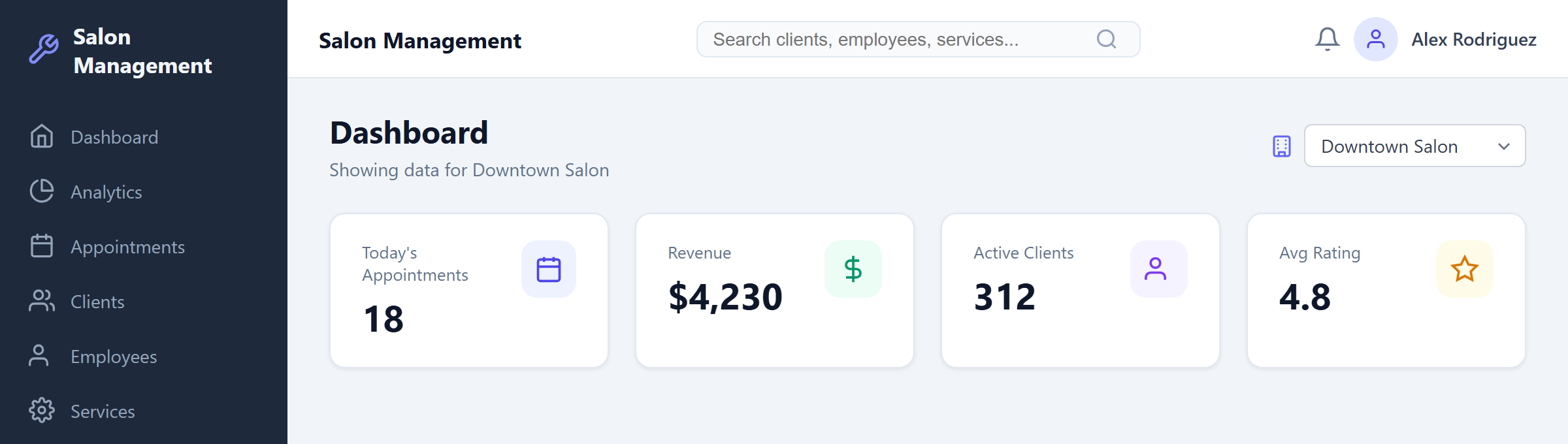
After selecting a salon, the dropdown closes and displays that salon's name. All data across every page in the application immediately filters to show only information for the selected salon. The dashboard, appointments, clients, employees, services, payments, invoices, and reports all reflect only that single location.
Understand Context Persistence
Your salon selection persists as you navigate between different pages within the application. You do not need to re-select your salon each time you visit a new section.
What you'll see: Navigate from the Dashboard to Appointments, then to Clients. The Salon Switcher continues to display the same salon name you selected. All data on each page remains filtered to that salon.
The selection is also stored in your browser's local storage. If you close the browser tab and return later, your previous salon selection is restored automatically. If you have multiple browser tabs open, changing the salon in one tab will synchronize the selection to other tabs.
Switch Back to Aggregate Mode
To return to the combined view across all locations, click the dropdown and select "All Locations" from the top of the list.
What you'll see: The dropdown reverts to displaying "All Locations". All pages return to showing aggregate data from every salon location. Dashboard metrics, reports, and lists once again include entries from all sites.
Understand Org-Scope vs. System-Scope Differences
The salons listed in the dropdown depend on your access scope:
| Access Scope | What You See in the Dropdown |
|---|---|
| Organization-scope | "All Locations" plus every salon belonging to your organization only |
| System-scope | "All Locations" plus every salon across all organizations in the system |
Organization-scope users (Organization Owner, Organization Admin) see salons within their own organization. "All Locations" aggregates data across their organization's salons.
System-scope users (System Admin) see salons from every organization in the entire system. "All Locations" aggregates data across all organizations and all salons.
What you'll see: The number of salons in the dropdown list differs based on your scope. An organization owner of a 3-location chain sees three salon entries. A system administrator overseeing five organizations with two salons each sees ten salon entries.
Tips & Best Practices
- Use "All Locations" mode when reviewing organization-wide performance, running cross-location reports, or comparing aggregate metrics.
- Switch to a specific salon before making changes that should apply only to that location (such as editing staff schedules or managing local inventory).
- If you manage multiple locations, develop a habit of checking which salon is selected before making edits. The salon name displayed in the header serves as a constant reminder of your current context.
- The salon selection syncs across browser tabs. If you work with multiple tabs for different locations, be aware that switching in one tab updates all others.
Common Issues
| Issue | Solution |
|---|---|
| Salon Switcher is not visible in the header | Your account has salon-scope access (single location). The switcher is only shown to organization-scope and system-scope users. Contact your organization administrator to request multi-location access if needed. |
| Only one salon appears in the dropdown | Your organization currently has one salon location configured. Add additional locations through organization management, or contact your system administrator. |
| Data does not change after selecting a salon | Refresh the page. If the issue persists, verify that the salon has data (appointments, clients, etc.) entered for it. |
| Selection resets after navigating to a new page | Check that your browser allows local storage. The selection is persisted in local storage and should survive navigation. Clear your browser cache and log in again if the problem continues. |
| "All Locations" shows no data | Ensure your organization's salons have data entered. In aggregate mode, the system combines data from all accessible salons; if none have data, the aggregate will also be empty. |
Related Journeys
- First Login & Setup — Understand the application layout and sidebar navigation before using the Salon Switcher
- Managing Your Organization — Add or configure salon locations within your organization
- Daily Dashboard Walkthrough — Learn what the dashboard shows in both aggregate and single-salon modes