Overview
The Organization Users page provides a centralized table of every user across all salons within your organization. From this page you can see each user's name, email, assigned roles, and access scope at a glance. This is a read-only view designed for organization-level administrators who need to audit user assignments, verify role distributions, and confirm that access scopes are correctly configured across locations.
The page is accessed via the sidebar under Organization > Users and is only available to users with organization-level or system-level access.
Prerequisites
- Role required: Organization Owner, Organization Admin, or System Admin
- Access scope required: Organization or System (salon-scope users cannot access this page)
- Before you start: Users must already be assigned to salons within your organization. If the list is empty, add users to individual salon locations first.
Navigate to Organization Users
Open the sidebar navigation and locate the Organization section. Click Users to navigate to the Organization Users page. The URL path is /organization/users.
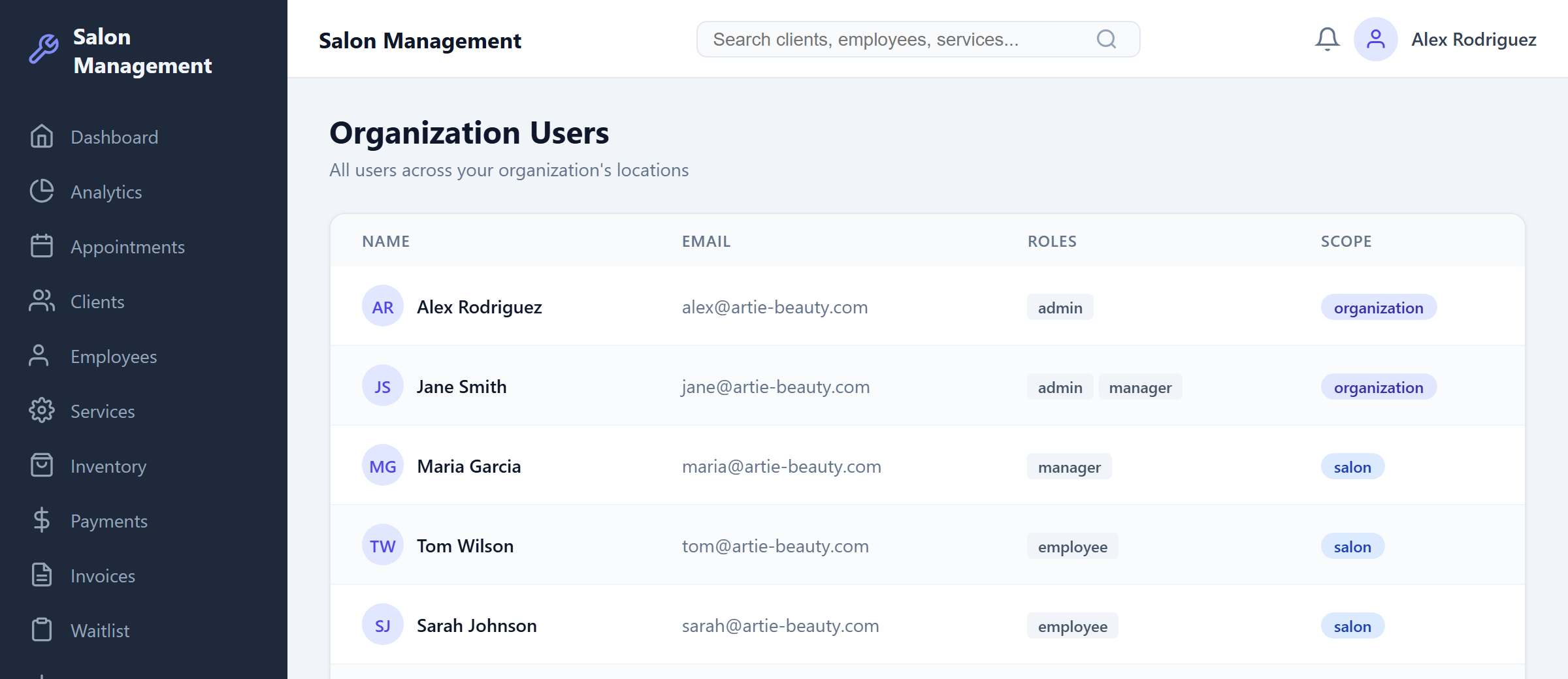
What you'll see: The page header reads "Organization Users" with the subtitle "All users across your organization's locations". Below the header is a table listing all users, or an empty state if no users have been added yet.
Understand the User Table
The user table displays four columns of information for each user in your organization.
| Column | What it shows |
|---|---|
| Name | The user's first name and last name combined (e.g., "Jane Smith") |
| The user's email address | |
| Roles | A comma-separated list of all roles assigned to the user, or a dash (—) if no roles are assigned |
| Scope | A blue badge showing the user's access scope, capitalized (e.g., Salon, Organization, or System) |
What you'll see: Each row represents one user. The table has a light gray header row with uppercase column labels. User data appears in alternating white rows with subtle dividers between them.
Read Access Scopes
The Scope column displays a blue badge for each user indicating how broadly they can access data in the platform. There are three possible scope values:
| Scope | Badge | What it means |
|---|---|---|
| Salon | Salon | The user can only access data for one specific salon location. They do not see the Salon Switcher and cannot view other locations. |
| Organization | Organization | The user can access all salons within your organization. They see the Salon Switcher dropdown and can switch between locations or view aggregate data. |
| System | System | A super-administrator with access to all organizations and all salons across the entire platform. This scope is reserved for platform-level administrators. |

Identify User Roles
The Roles column shows every role assigned to a user as a comma-separated list. A single user may have multiple roles if they serve different functions within the organization.
| Role | Description |
|---|---|
| admin | Full administrative access to salon operations |
| manager | Management-level access to most features |
| employee | Staff-level access for day-to-day operations (stylists, technicians) |
| receptionist | Front desk access for appointments, clients, and payments |
| client | Limited access for client self-service features |
If a user has no roles assigned, the column displays a dash (—) instead of an empty cell. This typically indicates a user account that has been created but not yet configured with permissions.
Use Pagination
When your organization has more than 20 users, the table displays 20 users per page with pagination controls at the bottom.
What you'll see: Below the table, a text line reads "Page X of Y (Z total users)" where X is the current page number, Y is the total number of pages, and Z is the total user count. To the right of this text are two buttons:
| Button | Behavior |
|---|---|
| Previous | Go back one page. Grayed out and disabled when you are on the first page. |
| Next | Go forward one page. Grayed out and disabled when you are on the last page. |
Click Next to advance through the user list. Click Previous to go back. The page loads new data each time you navigate, and a loading indicator may briefly appear while data is fetched.

Understand the Empty State
If your organization has no users assigned to any salon location, the table is replaced with an empty state message.
What you'll see: A centered card with a gray Users icon, the heading "No users found", and the message "Users will appear here once added to your organization's salons."
This indicates that you need to add users to individual salon locations before they will appear in this organization-wide view.
Tips & Best Practices
- Use this page for periodic audits of user access. Verify that scope assignments match each user's actual job responsibilities.
- System-scope users should be limited to platform administrators only. Review system-scope assignments regularly.
- The table is read-only. To change a user's role or scope, navigate to the individual salon's user management page or contact a system administrator.
- For organizations with many users, use pagination to methodically review users page by page rather than trying to find a specific user visually.
- If a user shows — in the Roles column, they may need to be assigned a role before they can perform any actions in the platform.
Common Issues
| Issue | Solution |
|---|---|
| Organization Users page is not visible in the sidebar | Your account has salon-level scope. Only organization-scope and system-scope users can access this page. Contact your organization administrator to upgrade your access. |
| Table shows "No users found" even though users exist | Users must be assigned to salons within your organization. If users were created but not linked to a salon, they will not appear here. |
| A user shows incorrect roles | Role changes are managed at the individual salon level. Navigate to that salon's settings to update user roles. |
| Pagination shows only one page | Your organization has 20 or fewer users. Pagination controls only appear when there are more than 20 users. |
| Error message appears instead of the table | A network or server error occurred while loading users. Refresh the page to retry. If the error persists, check your internet connection or contact support. |
| A user's scope badge shows "Salon" but they should have organization access | Scope is assigned at the system level. Contact a system administrator to change a user's access scope. |
Related Journeys
- Switching Between Salon Locations — Learn how the Salon Switcher works for organization-scope and system-scope users
- Adding an Employee — Add staff members to individual salon locations before they appear in the organization users list
- Configuring Salon Settings — Manage salon-level settings including user roles and permissions